
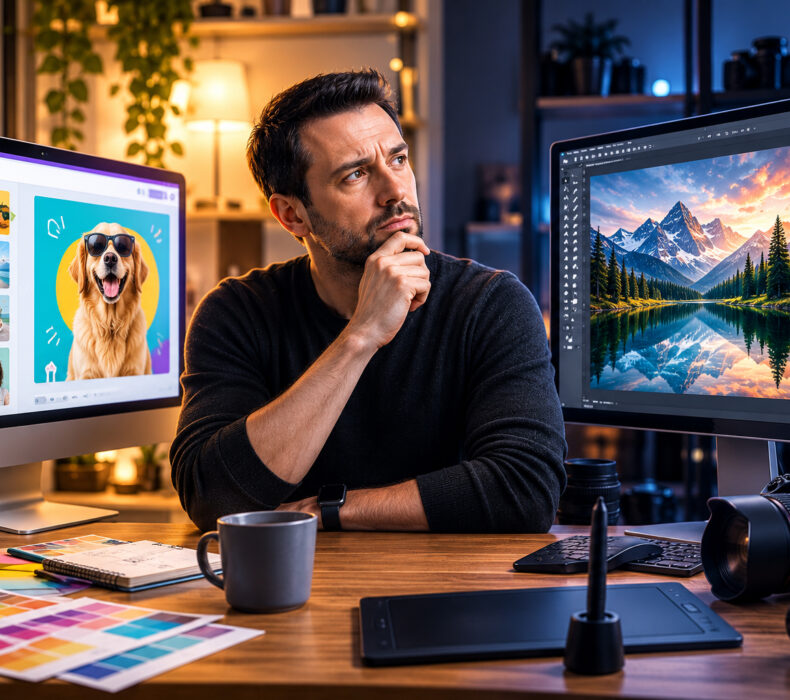
Canva vs Photoshop is the design world’s longest-running bar fight, and like most bar fights, nobody involved remembers what started it. I have spent more than twenty years of my working life in Photoshop, I keep Canva around for the days when speed matters more than pride, and I am here to tell you the fight is fake. These are not two versions of the same thing. They are two different tools that happen to share the word “design” on the box.
Asking which one is better is like asking whether a scalpel beats a Swiss Army knife. Depends. Are you doing surgery, or opening a bottle on a Tuesday?
The punchline is that most people arguing about this would be happier if they switched seats. Half the frustrated Canva users out there are trying to force a template to do Photoshop’s job, and plenty of Photoshop subscribers are paying professional rent to make birthday flyers.
So instead of the usual feature-list staring contest, let’s settle Canva vs Photoshop the useful way: by the job in front of you.
What Canva Actually Is (And Isn’t)
Canva is an assembly line for finished-looking graphics. You pick a template, drop in your text and images, nudge a few things, and walk away with something presentable in minutes. That is not an insult. That is the entire point, and Canva executes it better than anyone else in the business.
The free plan is a real product, not a demo with a guilt trip. You get a serious template library, a huge pile of stock assets, and enough features to run a small brand’s social media without paying a cent. The paid tier unlocks the premium template and stock libraries, a proper background remover, one-click resizing between formats, brand kits so your colors and fonts stop wandering off, and a bigger allowance for the AI features.
What Canva is not: a precision instrument. You are always working inside its system. When a template does ninety percent of what you want, life is wonderful. The moment you need the remaining ten percent, you discover the walls. They are painted in cheerful colors, but they are walls.
What Photoshop Actually Is (And Why It Scares People)
Photoshop is a pixel editor. It does not care what you are making. A poster, a restored family photo, a YouTube thumbnail, a product mockup, a digital painting, a banner where the client wants the logo three percent bigger for the fourth time this week. Photoshop hands you layers, masks, and control over every pixel on the screen, and then it stops holding your hand entirely.
That is the trade. Canva meets you at the door with a template. Photoshop hands you a cockpit and wishes you a pleasant flight. The learning curve is real, and anyone who tells you otherwise is selling a course. But the ceiling is real too: there is almost nothing a flat image needs that Photoshop cannot do.
Most people who pay for Photoshop and quit didn’t fail. They bought a jet to drive to the grocery store. The tool was never the problem. The match was.
And one difference sounds banal until the day it saves you: Canva makes a graphic, Photoshop makes a file. Yes, a Canva design stays editable, but it is editable the way a rental apartment is yours: only while you are inside their building. A layered Photoshop document is property. Masks, channels, Smart Objects, color management, a revision five years from now, all of it sitting on your own disk, ready to hand to another professional or rebuild without starting from zero.
That is one reason Photoshop stays welded into professional workflows: agencies, retouchers, photographers, and print shops routinely need editable, color-managed files that can be revised without redoing the whole job. Canva exports the result. Photoshop preserves the work itself. Clients do not pay twice for pictures. They pay for files that survive.
Canva vs Photoshop, Job by Job
Social media graphics, presentations, flyers, event posters, simple marketing material: Canva, and it is not close. Speed wins here, and a template that is eighty percent right beats a blank canvas every day of the week.
Editing photos beyond a filter, restoring old scans, cutting subjects out of messy backgrounds, digital painting, building textures, product mockups, thumbnails designed to out-click everyone else’s: Photoshop territory. This is where “good enough” quietly stops being good enough.
Brand consistency at volume is the interesting one: Canva’s brand kits are the feature Adobe should be embarrassed about. If a team of non-designers has to ship on-brand graphics every day, Canva keeps them inside the lines without a designer standing guard.
A concrete example from this site: every Pinterest pin here is built in Photoshop. I tried the template route. For one-off graphics it was fine, but the moment I wanted my text, my logo, and my colors to behave identically every single time, at exact pixel positions, I went home to Photoshop. Speed lost to control, because in that particular job, control is the job.
Here is the whole Canva vs Photoshop argument on one napkin:
| The job | Canva | Photoshop |
|---|---|---|
| Social media graphics | ✔ | |
| Presentations and decks | ✔ | |
| Flyers and event posters | ✔ | |
| Team templates and brand consistency | ✔ | |
| Photo editing and retouching | ✔ | |
| Restoring old photos and scans | ✔ | |
| Digital painting and textures | ✔ | |
| Product mockups | ✔ | |
| YouTube thumbnails | ✔ | |
| Print jobs that need prepress control | ✔ | |
| Pinterest pins | ✔ (mine, anyway) |
If Your Work Will Be Printed
This is the part of the Canva vs Photoshop conversation nobody has until it is too late. I have spent my whole career inside print shops, doing design and prepress, and a big part of that job is fixing colors so that what looked great on somebody’s monitor still looks great on paper. Screens forgive almost everything. Paper forgives nothing.
Canva can hand you a print-ready PDF, and for a flyer at the local copy shop that is honestly fine. But the moment a job involves precise brand colors, CMYK conversion, real resolution at print size, bleed, or a press operator with opinions, you want a file built by hand, in a tool that lets you control every one of those things. Between these two, that tool is Photoshop, and it is not close. To be fair, Photoshop is not the only professional print tool either: vector logos live in Illustrator, multi-page publications in InDesign. But a full prepress workflow is simply not a job you hand to the one with the cheerful templates.
The Money Question: What Are You Actually Paying For?
Price tables expire, so here are the shapes instead of the digits, and the official Adobe pricing page and Canva pricing page hold the current numbers.
The shapes: Photoshop is a monthly subscription in the price range of a decent dinner, and Adobe’s quietly good deal is the Photography plan, which bundles Photoshop with Lightroom for roughly the money of Photoshop alone. Canva Pro is usually the cheaper paid commitment of the two, shown in your local currency. Exact numbers depend on your country, your billing cycle, and whatever promotion either company is running this week, which is exactly why none are printed here. And Canva’s free plan means finding out costs you nothing but an email address.
The real Canva vs Photoshop money question is not which one is cheaper. It is which one you would actually use enough to justify any price. A subscription you open twice a month is expensive at every number. A tool that earns money every week is cheap at almost any number.
The AI Question (Both Sides Are Yelling About It)
Both companies are in an arms race to bolt AI onto everything that holds still, so let’s name names. Canva groups its automation and generative tools under the Magic Studio umbrella: one-click background removal, object editing, image generation, and fast adaptation of one design into other formats, all metered by an allowance that grows on paid plans. For social content, that covers most of what a non-designer will ever ask an AI to do.
Adobe’s side is Firefly, wired into Photoshop as Generative Fill, Generative Expand, and the Remove tool. The difference is where the AI sits. Canva’s AI finishes a design for you. Photoshop’s AI works inside the pipeline: generate a background, extend a photo that was framed too tight, remove a fence from a shot, and then keep editing the result pixel by pixel on its own layer. One is a vending machine, the other is a sous-chef.
My honest read from pushing AI images through a real production workflow, week after week: Photoshop’s AI almost never hands me the final image. It hands me the starting point. AI narrows the gap at the bottom, not at the top. It makes a beginner’s output dramatically better and a professional’s process dramatically faster. It has not made taste optional. I generate base images with AI and finish every single one by hand, and I wrote about which of these tools survive contact with real work in my breakdown of AI image generators.
Canva vs Photoshop: The Verdict
If your work is mostly social media graphics, presentations, flyers, and simple marketing material, Canva will serve you better, faster, and cheaper. Full stop.
If you edit photographs seriously, restore old scans, paint, build textures or mockups, or need any result where the pixels have to be exactly yours, that is Photoshop, and no template will save you.
And if you read both of those and thought “that’s me on Monday, and also me on Thursday”, congratulations: you are like most working creators, and the answer is both, each for its own job. A tool is not a personality trait. Nobody is engraving your software choices on a plaque.
If I could keep only one forever, I would keep Photoshop. If my neighbor asked me tomorrow morning which one to get, I would say Canva without blinking. Both answers are true, and that is this entire article in two sentences. The fight ends the way most bar fights do anyway: both guys buy each other a drink and get back to work.
The thirty-second Canva vs Photoshop answer, for the road: Need it shipped today? Canva. Need every pixel to be yours? Photoshop. Is it going to a printing press? Photoshop. Handing it to a team of non-designers? Canva.
The Mistake That Actually Costs You
Most people do not lose the Canva vs Photoshop game by picking the “wrong” tool. They lose it by paying for identity. Photoshop as a costume for “I am a real creative now”. A paid plan because the upgrade page made the free tier feel like showing up to a wedding in flip-flops.
Twenty years of receipts, summarized honestly: the money I wasted went on a fancy mouse and a fancy keyboard, because any average model finishes the job. The money I never regretted went on a good monitor, hardware color calibration, and Photoshop itself. The pattern is not subtle: pay for what changes the picture, not for what decorates the desk. A calibrated monitor is the difference between guessing and knowing.
So buy for the job in front of you, this month. Jobs change, subscriptions can change with them, and canceling one is not a moral failure. Start free, upgrade the day you hit the same wall twice in one week, and if you are building content around these tools the way I am, my AI writing workflow shows where they fit into a bigger system.
What I Actually Use After Twenty Years
Photoshop, daily, for anything that ends up in front of a paying audience: pins, featured images, retouching, mockups. Canva, occasionally, when someone needs a presentable graphic in ten minutes and perfection would just be showing off.
Photoshop skills transfer to every serious editor ever made. Canva skills transfer to using Canva. That alone is a reason to learn at least the basics of a real editor, and it pairs well with the AI tools I actually use as a working designer.
Twenty years in this business taught me one rule that outlasts every subscription, every version number, and every AI feature launch. It is the only sentence here worth writing on a sticky note.
Tools are rentals. Skills are property.
Canva vs Photoshop: Quick Questions
Is Canva good enough for professional design work?
For a real slice of it, yes. Social content, decks, and marketing collateral for small brands ship out of Canva every day, made by professionals who feel no shame about it. The ceiling shows up when a client needs precision, print production, or serious retouching. Then you need a real editor behind the curtain.
Should a complete beginner learn Photoshop or just use Canva?
Start with Canva and ship something this week, because motivation feeds on finished work. If you start feeling the walls within a month or two, that is your sign. Learn Photoshop’s layers and masks, which cover most of what daily work requires, and keep Canva for the quick jobs.
Can Photoshop do everything Canva does?
Technically yes, practically no, and this is where the Canva vs Photoshop debate gets settled for most people. Photoshop can produce anything Canva can, just slower, without the template library and the team features that make Canva convenient. Nobody should build routine social graphics from a blank canvas out of principle. Principles are expensive.

Survived 20 years of clients, deadlines, and bad briefs. Started Wizformer to see if working for yourself is actually better. Jury's still out.