
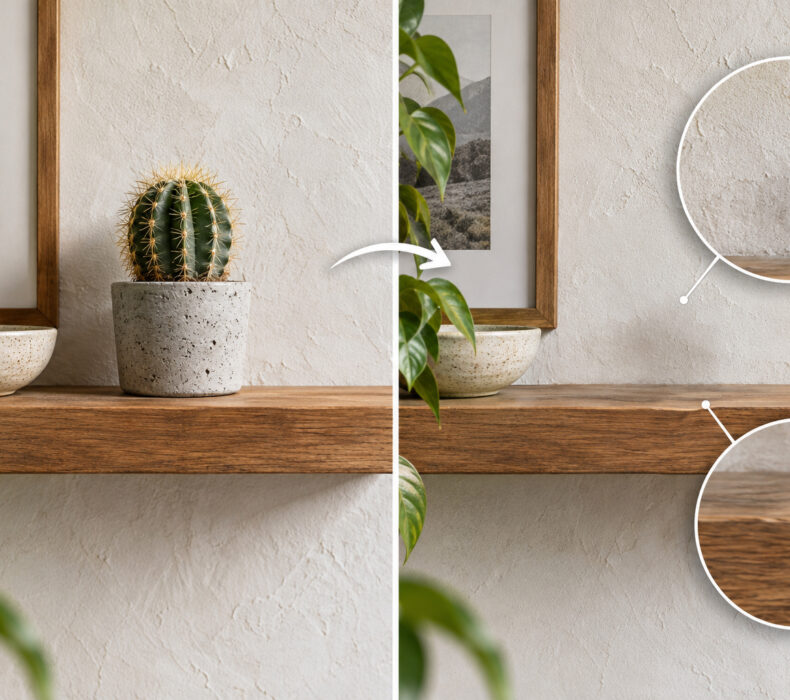
The client sentence I fear most is “Just take this from here and put it there.” It sounds like a ten-second job for Content-Aware Fill. It usually means an hour of selections, cloning, and matching light until nobody can tell anything was ever there.
Photoshop has been promising to shrink that hour since 2010, when Adobe introduced Content-Aware Fill. Sixteen years later, Content-Aware Fill reminds me of a coworker who is great in meetings. Impressive at a glance. You still check the work.
So I checked the work. I have been retouching in Photoshop since 2005, mostly for print, and print is where soft patches go to get caught. I gave Content-Aware Fill three jobs I would normally do by hand, then zoomed in to 100% and looked at what it actually did. Short version: one partial pass, two fails, and one of the fails was a cactus.
Why Content-Aware Fill and not Generative Fill
This article was supposed to be about Generative Fill. Then reality showed up.
My copy of Photoshop 27.6.0 works offline, and Adobe’s generative tools do not. Adobe’s own help page lists the requirements for its generative features: an internet connection, an Adobe ID, and generative credits. On my machine, Generative Expand sits in the Crop tool menu grayed out, like a dessert you can see on the menu but are not allowed to order.
Content-Aware Fill is a different story. In my copy of Photoshop 27.6.0 it worked offline, with no credits involved. That made it the one tool I could actually test. What Adobe says about the newer generative version is at the end, clearly labeled as the part I could not test.
What Content-Aware Fill actually does
Unlike Generative Fill, Content-Aware Fill works from pixels already in your image. Adobe Research describes the technology behind it as filling holes “by borrowing pixels from other parts of the image,” and Adobe’s help page puts it even shorter: it “automatically fills the area based on surrounding pixels.” Think of it as a very fast, very confident Clone Stamp that picks its own source.
Since Photoshop CC 2019 it has its own workspace: a green overlay that shows where it samples from, Color Adaptation to match brightness and contrast, Rotation Adaptation for curved patterns, Scale and Mirror options, a Sample All Layers checkbox, and a choice to send the result to a new layer. I left the sampling and fill settings on their defaults, because that is how the tool greets you, and sent every result to a new layer so I could switch it on and off against the original.
The test: one photo, three jobs
The file was a stock portrait, 6888 x 4592 pixels at 300 ppi, RGB, 8-bit. A young woman at a wooden table, a textured plaster wall, a wooden ledge holding a vase, a cactus in a concrete pot, and a glass jar. Nothing exotic. That was the point.
The tool was Photoshop 27.6.0. The Content-Aware Fill workspace ran on default settings (Auto sampling, Color Adaptation on Default, Rotation Adaptation off, Scale and Mirror off), with the output going to a new layer. For the expansion job I used the Crop tool’s Content-Aware Fill option. Tested in September 2026.
The zoom was 100%. On a file this large, 100% already shows you the real pixels, one for one, and at 200% the cactus did not even fit on my screen. The before and after pairs for jobs one and three were captured at the same spot and the same zoom.
Job one: remove a cactus from a shelf
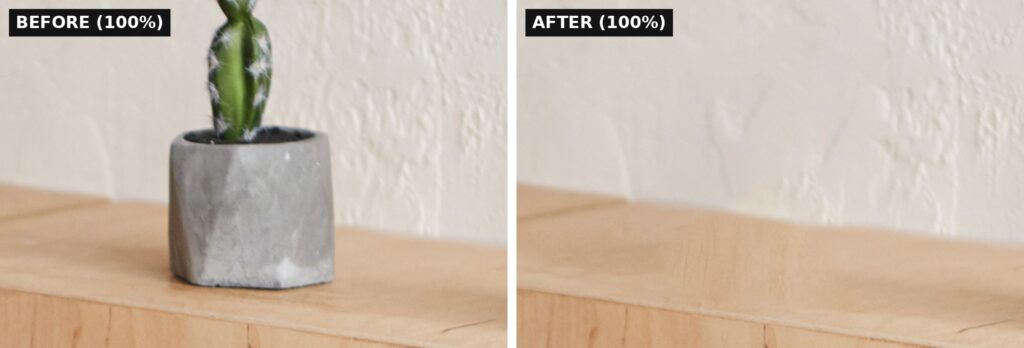
This is the job Content-Aware Fill was built for. One object, a plain wall behind it, a plain board under it. I drew a loose lasso around the cactus and its pot, a selection of 1134 x 1187 pixels, and clicked OK.
At 100%, the wood on top of the ledge was wrong. Not a little wrong. The grain turned into a smeared band with vertical lines that no board has ever grown. The line where the ledge meets the wall picked up a step, as if someone had sawed the shelf in half and glued it back a few pixels off. The plaster came back in a slightly different color, with a flatter texture than the surrounding wall.
And then the shadow. The pot was casting a soft shadow onto the wall and the ledge. My selection took the pot but not all of the shadow, and Content-Aware Fill has no idea that a shadow belongs to an object. So it removed the pot and kept part of its shadow, now cast by nothing. A ghost with excellent lighting.
To be fair, the shadow is partly on me. The fix is to include it in the selection. But the rest was a plain wall and a plain board, which is about as easy as retouching gets, and the tool still made a mess of it.
Verdict: failed. The ledge and the wall would both need hand work, so the tool saved me close to nothing.
Job two: make the photo wider
Every designer gets this one. The photo is perfect, except it is the wrong shape. The client needs a banner, the photographer shot something narrower, and somebody has to invent the missing strip.
Photoshop’s Crop tool has a Fill menu with a Content-Aware Fill option. Drag an edge past the canvas, press Enter, and Photoshop fills the new space. Adobe’s tutorial promises it “automatically fills the edges with content that matches the rest of the photo!” The exclamation point is theirs.
My first attempt produced a wall. Just wall. Where there should have been a ledge and wood paneling, it painted plaster all the way to the bottom of the frame. In my case the culprit was the active layer: it was the one from job one, holding nothing but the small patch where the cactus used to be. Photoshop works from what the selected layer actually contains, and when there is too little, it can even stop you with an error about “not enough source pixels on the selected layer.” I had handed it a postage stamp of wall and asked for a room.
So I flattened the image (Layer > Flatten Image) and ran it again, taking the width from 6888 to 7980 pixels, about 16% wider.
The second result was much better. The ledge continued. The paneling continued. The seam where the original photo meets the new strip was clean.
At 100%, two problems. The wall texture repeats, and once you spot the pattern you cannot unsee it: the same few patches of plaster stamped side by side, like wallpaper pretending to be a wall. And the top edge of the ledge wobbles. That board was cut in a straight line. Content-Aware Fill turned it into a gentle wave.
Verdict: partial pass. Better than the cactus, far from finished. Not something I would send to print.

Job three: the spot where skin meets sweater
For the third job, I deliberately put Content-Aware Fill in an awkward spot: right across the line where skin meets fabric. That kind of boundary matters in real retouching. When a stray thread or a speck of lint lands exactly there, you cannot clone from next door, because next door is either skin or sweater, never both.
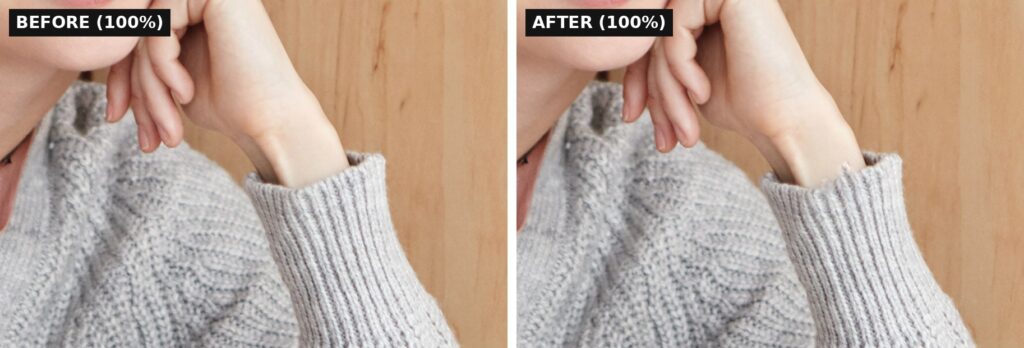
I made a small selection, 129 x 164 pixels, straddling her wrist and the ribbed cuff of her cardigan. Half skin, half knit. Then I let Content-Aware Fill decide what belongs there.
It decided on soup. The clean edge of the cuff disappeared. Knit fibers crept onto the skin. The border between the two materials, crisp in the original, became a blurry negotiation. The selection was tiny, and the smear is still easy to see at 100%.
In this test, Content-Aware Fill handled the textures but lost the boundary between them. It did not treat the wrist and the sleeve as two things with a line between them. It mixed them.
Verdict: failed. For this kind of edge, I would still do the final cleanup by hand.
The scorecard
| Job | Selection | Result | What still gets done by hand |
|---|---|---|---|
| Remove a cactus | 1134 x 1187 px | Failed | Wood grain, the ledge line, wall color, leftover shadow |
| Widen the photo | +1092 px (16%) | Partial | Repeating wall texture, the wavy ledge edge |
| Skin meets sweater | 129 x 164 px | Failed | The edge between skin and knit |
Three jobs, zero clean wins. Every result needed hand work before I would call it finished.
How to get better results from Content-Aware Fill
None of this means you should uninstall anything. It means you should use Content-Aware Fill like a first draft, not a final answer. Here is what makes the difference in practice.
Include the shadow. Whatever you remove, select its shadow with it. The tool will not do that thinking for you.
Give it room. Adobe recommends a selection that “extends slightly into the area you want to replicate”, so do not trace the object tight.
Control what it copies. In the workspace, switch the sampling area to Custom and paint only the surfaces you want it to borrow from. If it keeps pulling wood into your wall, take the wood away from it.
Check the layer. If Sample All Layers is off, make sure the layer you are asking Photoshop to sample actually contains the pixels it needs. Before an expansion, flattening a copy of the file is the simplest insurance.
Run it twice. A retoucher on Adobe’s forum, in a thread a user titled “Adobe Content Aware Fill is Horrendous 40% of the Time”, pointed out that it gives different results on each run, and that the old tools, patching and the Clone Stamp, still do the rest.
Fix straight edges by hand. Shelves, door frames, horizon lines, anything a carpenter made straight. Rebuild the line with the Clone Stamp and a harder brush, or with a clean selection, and let Content-Aware Fill handle only the flat area around it.
Keep it on its own layer. The best Photoshop habit I learned too late is taking layers and masks seriously. Every fill gets a layer and a mask, so you can pull back to the original wherever the tool overreached. It is the same rule I use for every AI tool in my design workflow: the tool gets a layer, I keep the file.
Check every fill at 100% before it leaves your desk.
What about Generative Fill?
Here is what I cannot tell you from my own test, and I am not going to pretend otherwise.
Generative Fill does not borrow pixels from your photo. It generates new ones on Adobe’s servers. In January 2026 Adobe announced that Generative Fill with its Firefly model now outputs at 2K. In August 2026, Photoshop product manager Cory Shubert recommended on Adobe’s forum making smaller selections, or cropping to a smaller area before generating, and then compositing the result back into the full document. That tells you the newer tool has its own limits on large, high-resolution documents.
Would it have handled my ledge better? I do not know. I will test Generative Fill the day I can run it. Until then, I am not grading homework I did not see.
Is Content-Aware Fill worth using?
It can still be useful as a first pass, but I would not treat the first result as finished. It is fast, and it costs nothing extra once you have Photoshop. In this test, every result needed a retoucher after it.
If you are deciding whether Photoshop is worth paying for in the first place, Content-Aware Fill alone is not the reason. Look at what your actual work needs. I broke that down in which jobs actually need Photoshop and which ones do not, and you can check current pricing on Adobe’s Photoshop plans page, since plans and prices change.
Content-Aware Fill FAQ
Why does Content-Aware Fill repeat the same pattern?
It builds the fill from patches of your own photo. When the area it can borrow from is small or uniform, the same patches can show up again and again, and on walls, skies, and floors you start seeing the repeat. That is what happened to the wall in my expansion test. Limit or change the sampling area in the workspace, run the fill again, and break up any leftover repeats with the Clone Stamp.
Does Content-Aware Fill work offline?
In my copy of Photoshop 27.6.0 it did, and as one reply on Adobe’s community forum put it, “Content Aware Fill does not count against credits.” Generative Fill and Generative Expand are different: Adobe lists an internet connection, an Adobe ID, and generative credits as requirements.
Why does Content-Aware Fill say there are not enough source pixels?
Because the pixels it is allowed to sample are not enough to fill the selection. In my case, the selected layer held only a small patch of the image. Select the layer with the full photo, tick Sample All Layers in the workspace, or flatten a copy of the file first.
The bottom line
In my three tests, Content-Aware Fill showed its sixteen years in exactly the places that matter to a retoucher: edges, shadows, and a shelf that was supposed to be straight. It gave me drafts. Not one of them was finished.
Years ago I spent two days rebuilding half of a man’s head from a photograph that had been torn into small pieces. The client looked at the result and said: “So what, the computer does that.” After this test I can answer him with a straight face. The computer does the rough draft. Somebody still has to zoom in and fix the shelf.
Alex has been a working graphic designer since 2005, most of it in print and prepress, and uses Photoshop every day. He writes about the design and AI tools that actually survive contact with real client work.

Survived 20 years of clients, deadlines, and bad briefs. Started Wizformer to see if working for yourself is actually better. Jury's still out.